How to Change the Language of Studio Outputs
Your output language is shared across Studio and Memo Agent. When you change it in one place, it becomes your active language everywhere.
What this affects
This language setting is used for Studio outputs, including:
-
Flashcards
-
Notes
-
Mind Map
-
Track
-
Tutor
-
Podcast
-
Infographic
-
Practice Tests
-
Memo Agent responses
Option 1: Change language from a Studio customize modal (pencil icon)
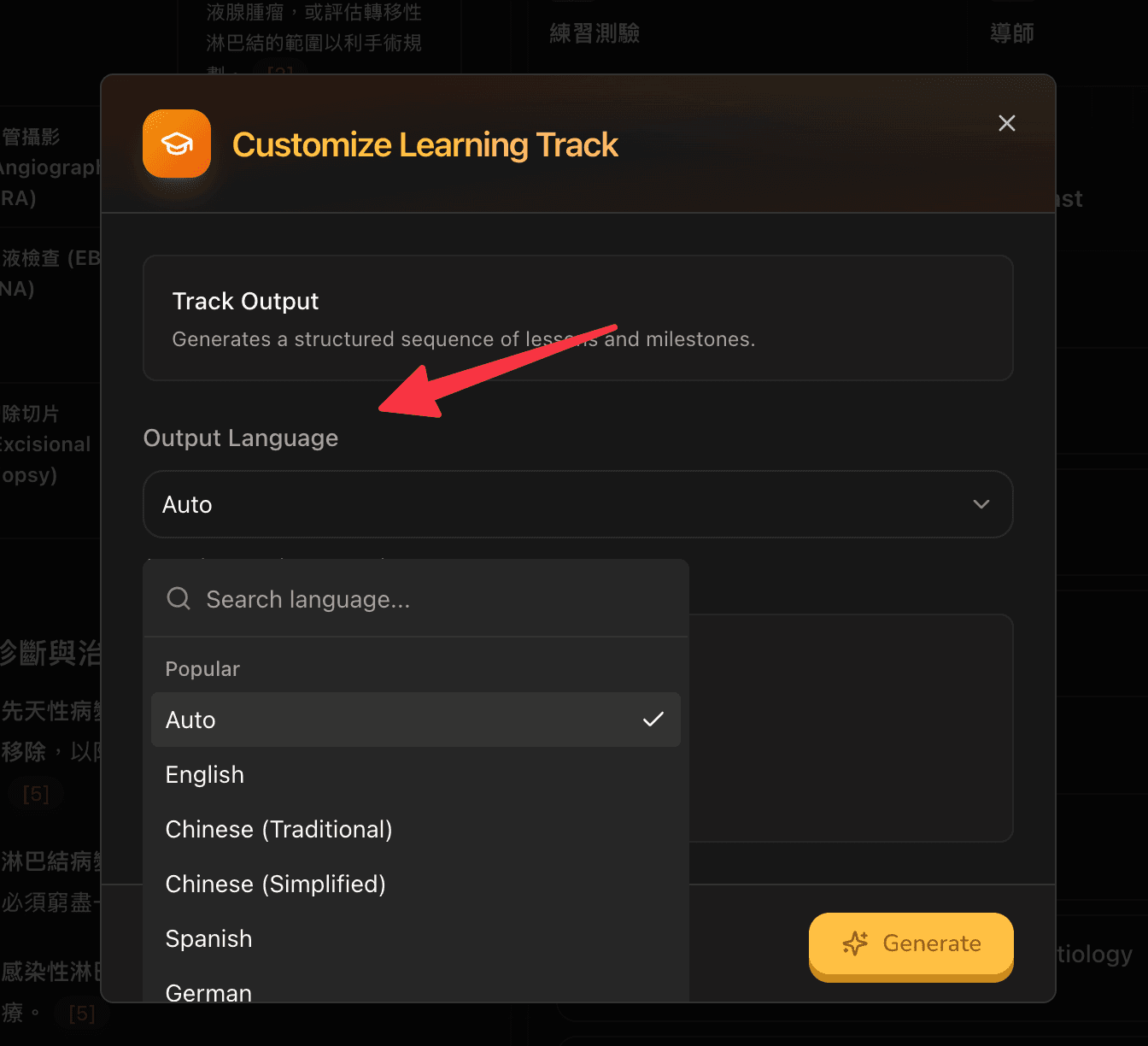
Use this when generating Flashcards, Notes, Practice Test, Mind Map, Track, Infographic, or Podcast.
-
Open your notebook in Studio.
-
Click the pencil (Customize) icon on an output tile.
-
Find Output Language.
-
Select your language (or keep Auto).
-
Generate your output.
Important:
-
The change is applied globally as soon as you select it (not only after clicking Generate).
-
Auto means Memo will follow the source language.
Option 2: Change language from Memo Agent
You can set the same shared language from Memo Agent.
-
Open Memo Agent.
-
If the language dropdown is visible, select it directly.
-
On compact/mobile layouts, tap + and choose language there.
This updates the same global output language used by Studio.
Option 3: Change language from Settings (global default)
-
Go to Settings → Configuration → General.
-
Change Language.
-
Click Save.
This updates your universal default language for Studio and Memo Agent.
Tutor-specific note
-
Tutor uses the same global language as the starting language.
-
The Tutor customize modal does not currently include an Output Language field.
-
Inside voice Tutor, users can change language in-session from the Tutor top bar. That in-session selection is session-level and does not currently write back to the global output-language setting.
FAQ
Does changing language translate existing outputs automatically?
No. Existing generated outputs stay as-is. Regenerate to get content in the new language.
Which setting wins if multiple values exist?
Memo resolves language in this order: explicit request language, then saved Settings language, then Auto.