Flashcards
Language is universal across Studio and Memo Agent
When you change Output Language in any Studio customize dialog, that updates your default output language across all Studio generations and your Memo Agent panel.
If you leave it on Auto, Memo detects the source language automatically.
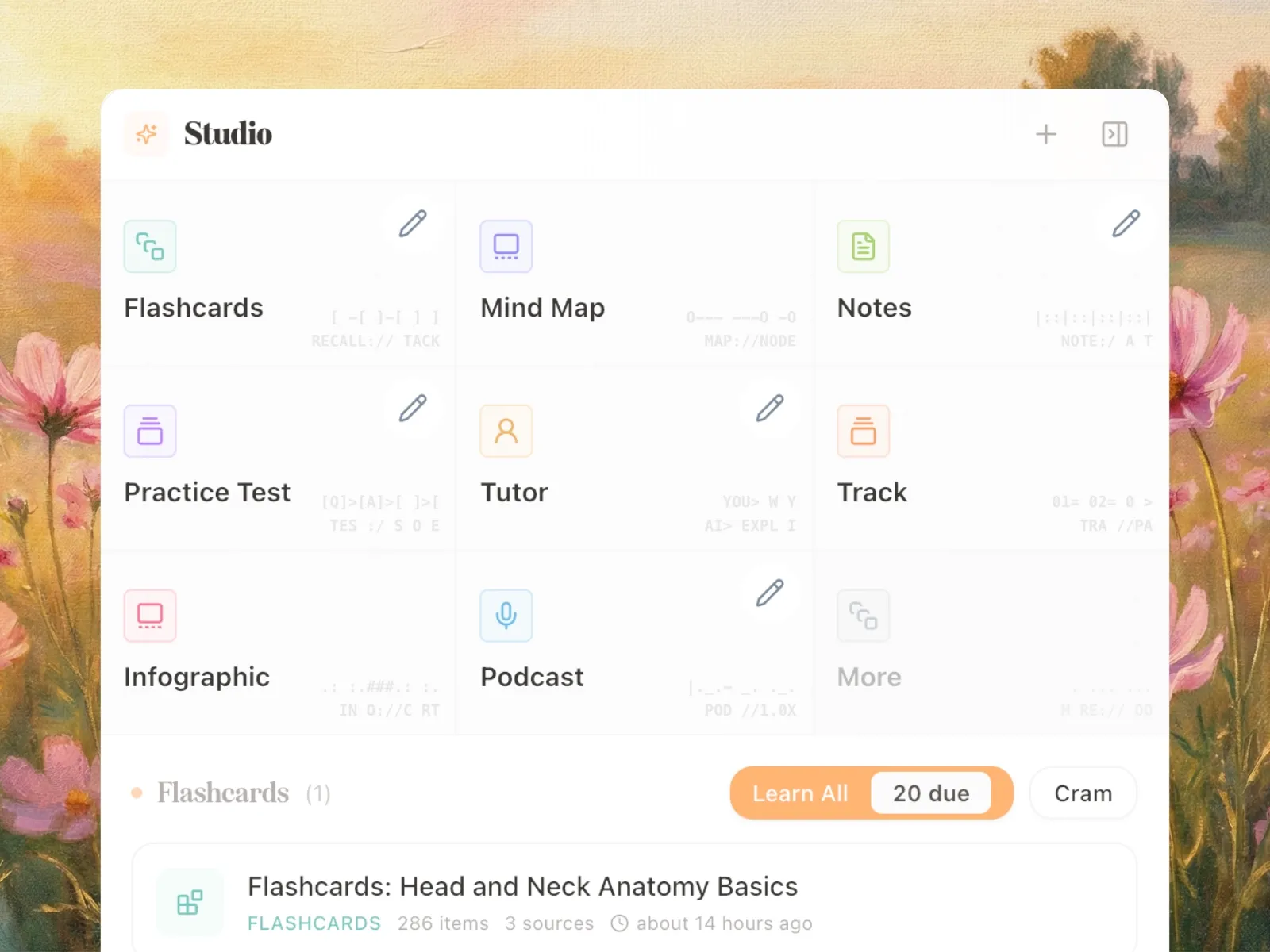
Step-by-step
Quick generate
-
Open your notebook.
-
Make sure the sources you want are selected in the Sources panel.
-
Go to Studio.
-
Click Flashcards.
-
Open the new flashcard set when generation finishes.
Customize before generating
-
In Studio, click the pencil icon on Flashcards.
-
Choose a flashcard skill or style.
-
Choose a generation mode:
-
Standard for a balanced run
-
Deep Dive for broader, more exhaustive coverage
-
-
Set the card count control that appears for your chosen mode.
-
Set the output language if needed.
-
Add optional custom instructions.
-
Generate the set.
What the customization options do
-
Skill / style: shapes the output format, such as basic cards, quiz-style cards, or cloze-heavy card patterns.
-
Generation mode: controls how aggressively Memo covers the selected sources.
-
Card count controls: help you keep the set concise or expand coverage.
-
Output language: changes the language used in the generated cards.
-
Custom instructions: adds your own focus areas or formatting guidance.
After generation
From the generated flashcard set, you can:
-
open it in the editor
-
review it in Learn
-
run a Cram session
-
rename it
-
delete it
-
export it as text, PDF, or Anki
-
reset the learning state for that set
Important notes
-
Flashcards are generated from the sources currently selected in the notebook.
-
Deep Dive is meant for broader coverage and may take longer than Standard.
-
Some accounts may see additional experimental controls during limited rollout.
-
Learn and Cram happen after the flashcard set has been created.
FAQ
What is the difference between Learn and Cram?
Learn follows your review workflow. Cram is a fast session-based review mode for the selected flashcards.
Can I export a flashcard set after it is generated?
Yes. Flashcard exports currently include text, PDF, and Anki.
Can I regenerate flashcards from a different source mix?
Yes. Change the selected sources first, then generate again.
Can I edit the cards after generation?
Yes. Generated flashcard sets are meant to be reviewed and edited.